Automation of an existing storage environment
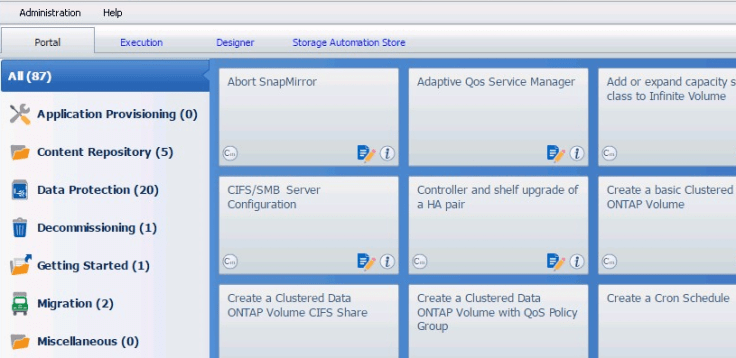
After about 12 years of experience in designing, deploying and managing NetApp (ONTAP) storage environments, I recently gained experience with NetApp Workflow Automation (WFA) during a project. WFA offers a wealth of standard workflows and scripts for managing a NetApp environment. These can be used directly or adapted to better suit your environment. Best of all? There are no costs!
What does a WFA environment consist of?
The WFA software can be installed on a physical server or virtual machine based on Windows or Linux. Most scripts are based on both Perl and Powershell, making both operating systems possible. Within this project we have chosen for a Windows environment because Powershell within WFA seems to be primary and there was already Powershell knowledge present.
NetApp OnCommand Unified Manager is used to map information about the NetApp environment. It is used in most environments anyway because it provides comprehensive health, capacity and performance management information for ONTAP systems. By reading out OnCommand Unified Manager, the WFA database is filled with information about the different storage objects. As a result, API calls to the storage environment are not constantly required when retrieving the required information.
The following figure shows schematically how the communication between the various components works. It can be seen that WFA can carry out actions directly via the Management APIs of the NetApp environment.
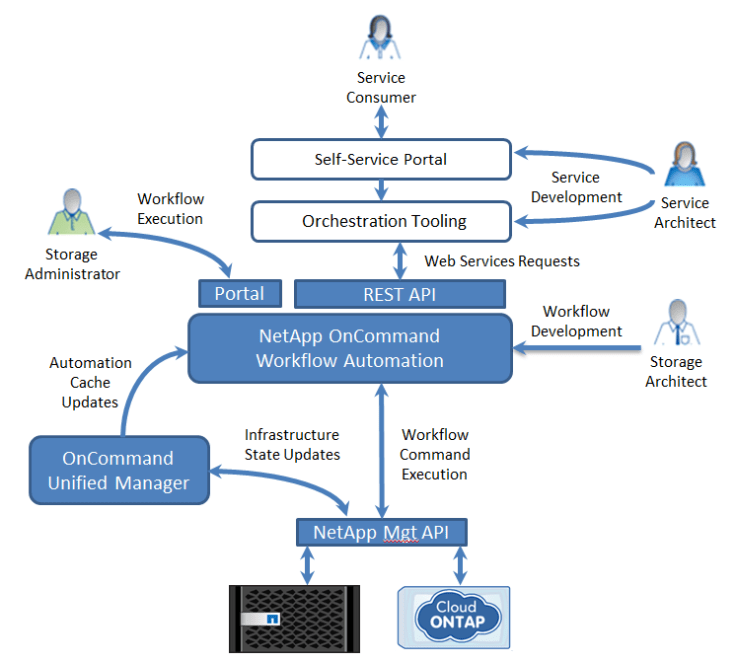
By placing another orchestration layer above WFA, it is possible to offer interactions in the service process with, for example, the VMware Orchestrator or ServiceNow. This allows end-users to be offered a Cloud-like portal while an administrator can perform his or her work in a controlled and consistent manner.
What if information is missing?
Although the information in OnCommand Unified Manager is extremely detailed, there will always be gaps. Fortunately, the WFA database can also be filled with other information sources such as VMware vCenter or by means of scripts of the systems themselves. This provides a much richer dataset on which automation tasks can be designed. For example, a database table can be created with which clusters are linked for disaster recovery purposes. This ensures that with minimal user input, automatic choices for storage commissioning can be made.
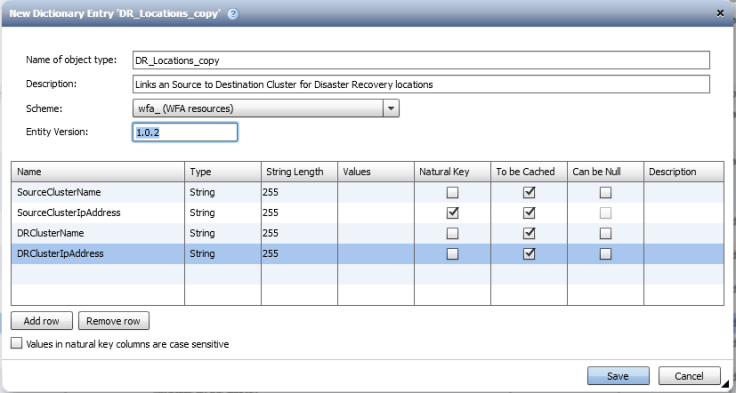
To fill my own database tables, I have used the Data Source Template of Mirko van Colen from NetApp. His blog WFAguy.com offers next to this template a lot of information for everyone who works with WFA.
Why should you start working with WFA?
I often hear the question why WFA should be used. Because you can do the same with scripts, other tooling such as vRealize Automation or even just manually because it goes fast enough. Obviously, WFA offers the same functionality as the above examples. The great advantage of WFA lies mainly in the intelligence present in the form of example workflows and the present Powershell and/or Perl scripts. Updating them with pack-up updates from NetApp’s Automationstore or new versions of WFA eliminates the need to keep reinventing the wheel. Of course, all actions can also be performed manually. This has been done by you or your team for years and it almost never goes wrong. The fact that things almost never go wrong does not mean that the work is carried out consistently by all administrators. This often results in pollution within the storage environment, which increases the risk of errors. In addition, the lead time of a manual action often does not provide a Cloud-like feeling for end users.
 Dive Virtual
Leave a comment